How to Add Page Numbers to a PDF Without Uploading It
Where the number belongs, why a cover page wrecks the count, and how to number front matter in roman numerals — all in the browser.
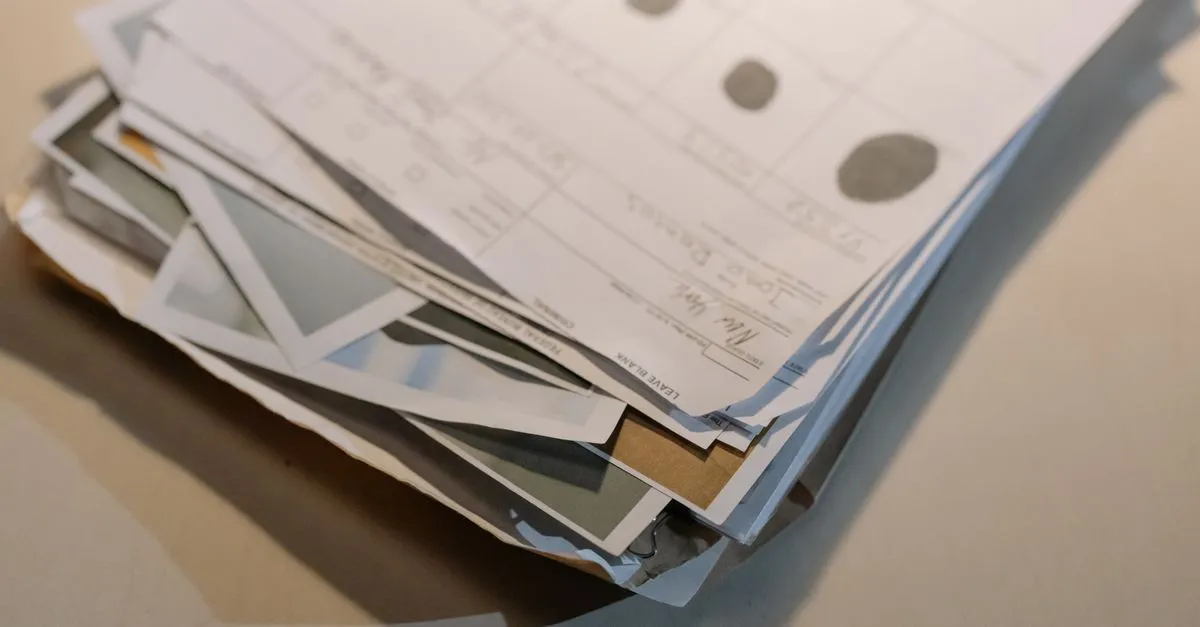
A PDF doesn’t know what page you’re on. Your reader says “4 of 17” in the toolbar, but that’s the reader counting objects in the file, not anything written on the paper. Print the thing, knock the stack off the desk, and good luck.
That gap is what Add Page Numbers to PDF fills. It draws the number onto each page as real text, in one of the fonts every PDF reader already has, and hands the file back. Nothing gets uploaded.
Where the number goes
Bottom centre, half an inch up. That’s 36 points in PDF units, since a point is 1/72 of an inch, and it’s the default the tool starts with for a reason: it never collides with a footer, it survives three-hole punching, and nobody has ever complained about it.
Don’t push the margin much below 18 points. Most consumer inkjets can’t print within about a quarter inch of the paper edge, so a number sitting at 10 points from the bottom either clips or vanishes. I’ve watched a 200-page print run come out with the last digit sliced off.
If the document is going to be bound double-sided, a print shop will usually ask for the outer corner, which flips between left and right as you turn pages. Bottom centre sidesteps the whole argument, which is why most people land there.
The cover page problem
This is the one that trips everybody. You add numbers, open the file, and the title page has a “1” stamped under the logo.
Put 2- in the Pages box. Numbering then skips page 1 entirely, and because the starting number applies to the first page that actually gets one, the body reads 1, 2, 3 rather than jumping to 2. If you’d rather the printed numbers match the physical page count — useful when someone will cite “page 7” over the phone — leave the range at 2- and set the first number to 2 instead.
Front matter wants roman numerals
Preface in i, ii, iii; body in 1, 2, 3. Book publishers have done it that way for centuries, and it still beats one long arabic run — the reader can tell at a glance whether they’re in the setup or the actual thing.
Two passes gets you there. First run: style i, ii, iii, pages 1-6. Then feed the result back in: style 1, 2, 3, pages 7-, first number 1. The second pass leaves the roman numerals alone because they’re outside its range.
Formats beyond a bare digit
The format box takes plain text with two placeholders. {n} is the page number and {total} is the last number used, so Page {n} of {total} prints “Page 3 of 12” and {n} / {total} prints “3 / 12”. Whatever else you type comes through as written.
One limit worth knowing about: the standard PDF fonts only carry Latin characters. “Página 3 de 12” and “Seite 3 von 12” are fine. Cyrillic and Greek aren’t, and the tool tells you so instead of printing a row of boxes.
Sideways scans
A scanned page often carries a rotation flag rather than actually being stored rotated. Plenty of online stampers read the raw page box, ignore the flag, and print the number sideways along an edge. This one applies the matching transform first, so “bottom centre” means the bottom centre a reader sees.
Why it stays on your machine
Everything runs in JavaScript in your tab. Nothing is sent anywhere, which matters when the document is a signed contract, a medical record, or anything else you’d rather not hand to a server you can’t inspect. Pull the network cable after the page loads and it still works.
Drop a file into Add Page Numbers to PDF and the numbers are on it in a second or two, no account required.