How to Get the Exact Color From Any Image (HEX, RGB, HSL)
Three reliable ways to pick a color from an image, why the pixel next to an edge lies to you, and when HEX beats HSL — with a free browser picker.
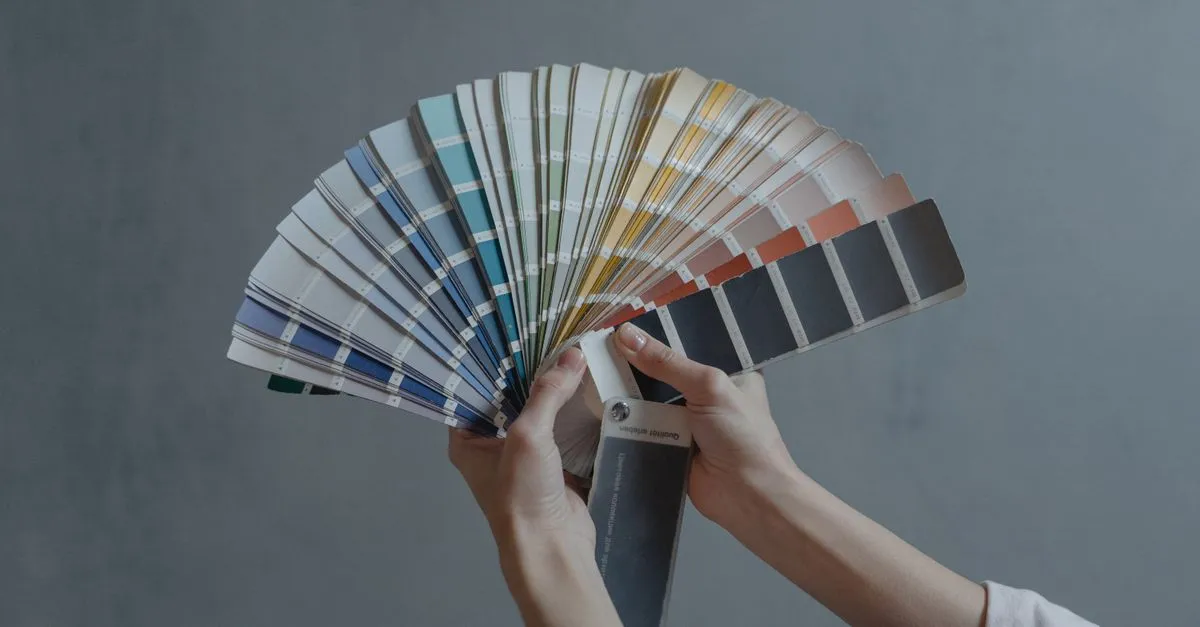
A client sends a logo and asks you to “use the same blue” on the website. There’s no brand book, no style guide, just a PNG. You need the exact color value — and eyeballing it in a CSS editor gets you close, never right.
The fastest way: pick it in the browser
Open the Image Color Picker, drop the file in, and click the pixel you want. You get the color in three formats at once — HEX for CSS, RGB for code, HSL for tweaking — with a copy button next to each. The image is read locally through the Canvas API, so nothing gets uploaded. That matters more than it sounds: plenty of “free” picker sites push your file to their server first, which is a strange thing to do with an unreleased design.
Desktop alternatives exist and they’re good: macOS ships Digital Color Meter, Windows has a color picker inside PowerToys. But both grab colors from your screen, not the file — which brings up a problem worth understanding.
Why screen-grabbed colors can be wrong
A pixel has one true value inside the file. On screen, that value passes through your display profile first. On a wide-gamut monitor (most MacBooks since 2016, many phones), a screenshot tool that isn’t color-managed can report an sRGB #FF0000 as something like #FB0007. Small shift, but if that value goes into a brand stylesheet, the logo and the background around it will never quite match.
Picking from the file itself skips the display entirely. The browser decodes the actual image data, and the value you copy is the value the designer exported.
The anti-aliasing trap
The most common picking mistake has nothing to do with color profiles. Zoom into any logo edge or text and you’ll see a 1–3 pixel gradient where the shape blends into the background — that’s anti-aliasing. Click there and you get a muddy in-between shade that exists nowhere in the actual design. JPEG compression makes it worse by scattering noise around hard edges.
Two habits fix this:
- Pick from the middle of a solid area, as far from edges as possible.
- Use the magnifier. The picker shows an 11×11 pixel grid around the cursor with the target pixel outlined, so you can see whether you’re on clean color or on a blend.
If several neighboring pixels give you slightly different values — #2A6FD1, #2B70D2, #2A6ED0 — that’s JPEG noise. Take the one that appears most often, or ask for a PNG.
HEX, RGB, or HSL — which one to copy?
They describe the same color, so it’s about what you’ll do next. HEX is the compact standard for CSS and every design tool; when in doubt, copy that. RGB is what canvas code and most graphics libraries expect. HSL is the one I reach for when the color needs to become a family: keep hue and saturation, move lightness up and down, and you have hover states and borders that stay in character. To go further — complementary and triadic schemes — feed the picked color into the Color Palette Generator, and check text-background pairs with the Color Contrast Checker.
Build a palette while you’re at it
Every click lands in a history row of up to twelve swatches, so you can walk through a photo — sky, skin, shadow, highlight — and come away with a working palette in under a minute. Try it on the next image someone sends you instead of a style guide: Image Color Picker.